
What to Check Before Buying a Used or Refurbished CCTV Hard Drive
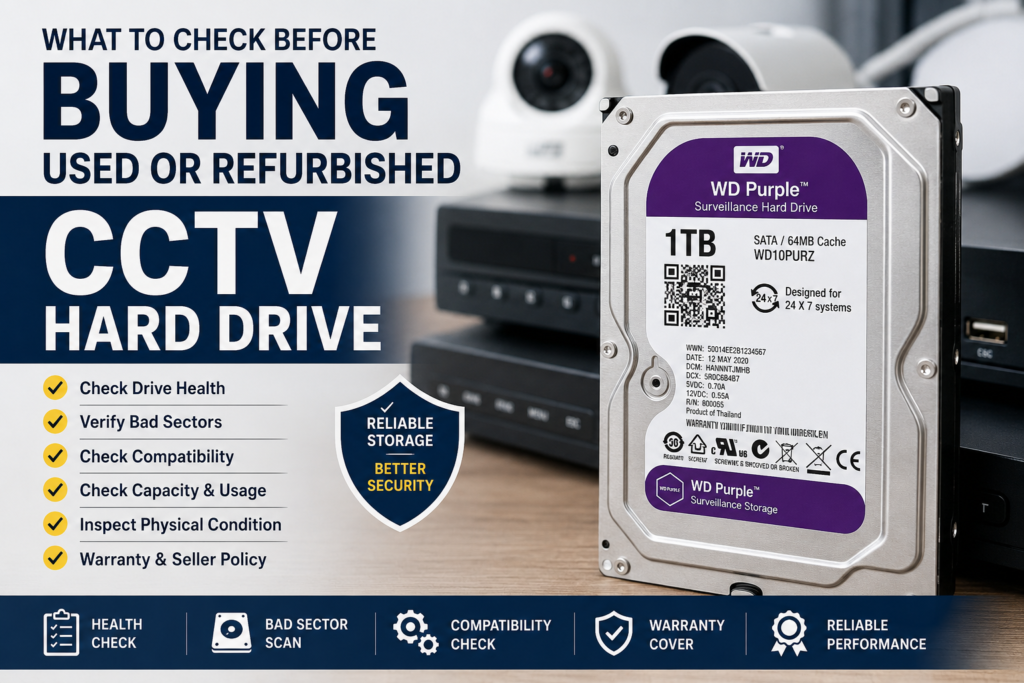
Buying a used or refurbished CCTV hard drive can be a cost-effective option for DVR and NVR surveillance systems. However, CCTV systems usually record video continuously for many hours every day, which puts more workload on a hard drive than normal desktop use.
A low-priced hard drive may look like a good deal, but choosing the wrong drive can lead to recording errors, missing footage, slow playback, or early hard drive failure. Before buying a used or refurbished surveillance hard drive, it is important to check its health, compatibility, condition, and warranty.
In this guide, we will explain what you should check before buying a used or refurbished CCTV hard drive and how to choose a reliable drive for your surveillance system.
1. Check Whether the Hard Drive Is Designed for CCTV Use
Not every hard drive is designed for continuous video recording. Standard desktop hard drives are mainly built for regular computer use, where data is read and written at different times. CCTV hard drives are designed to handle continuous recording workloads.
Popular surveillance hard drive series include:
These hard drives are optimized for DVR and NVR systems and are designed to support continuous video recording.
Before buying, check the model number printed on the hard drive label. Search for the model specifications on the manufacturer’s website to confirm whether it is a surveillance hard drive.
A desktop hard drive may work in some CCTV systems, but a surveillance-grade hard drive is generally a better choice for long recording hours and multi-camera setups.
2. Check the Hard Drive Health
Hard drive health is one of the most important factors when buying a used or refurbished CCTV hard drive.
Ask the seller for a hard drive health report generated using diagnostic software such as:
- CrystalDiskInfo
- Hard Disk Sentinel
- Manufacturer diagnostic tools
The health report can provide information about the condition and usage history of the drive.
Important values to check include:
Reallocated Sector Count
Reallocated sectors are damaged sectors that have been replaced with spare sectors by the hard drive.
A small number does not always mean immediate failure, but a high or increasing reallocated sector count may indicate that the hard drive is becoming unreliable.
For CCTV recording, it is generally better to choose a drive with no reported bad or reallocated sectors.
Current Pending Sector Count
Pending sectors are unstable sectors that the hard drive is unable to read correctly.
A drive with pending sectors may cause recording errors, corrupted video files, or missing footage. Ideally, this value should be zero.
Uncorrectable Sector Count
Uncorrectable sectors are areas where stored data cannot be recovered properly.
For a CCTV system, uncorrectable sectors can be risky because important video recordings may become damaged or unavailable. Choose a drive with zero uncorrectable sectors whenever possible.
Power-On Hours
Power-on hours show how long the hard drive has been operating.
CCTV hard drives often have high power-on hours because DVR and NVR systems may run continuously. High power-on hours do not automatically mean that a drive is faulty, but they should be considered together with overall health, bad-sector data, noise, temperature history, and test results.
Do not judge a used hard drive only by its power-on hours.
3. Ask Whether the Drive Has Been Fully Tested
A quick health check may not identify every problem. Before buying a refurbished CCTV hard drive, ask whether the seller has performed a complete diagnostic test.
A properly tested hard drive should ideally go through:
- SMART health inspection
- Full surface scan
- Read test
- Write test
- Bad-sector check
- Performance test
A full surface scan checks the entire storage area and may detect weak, slow, or damaged sectors.
If the seller only says that the hard drive is “working,” ask what testing process was used. A drive can be detected by a computer and still have health or performance issues.
4. Check for Bad Sectors
Bad sectors are damaged storage areas that may not store or read data correctly.
In a CCTV system, bad sectors may result in:
- Missing video footage
- Recording interruptions
- Playback errors
- Corrupted recordings
- DVR or NVR storage warnings
Before buying, ask whether the hard drive has completed a full bad-sector scan.
For reliable surveillance use, a drive with no bad sectors is generally the safer choice.
5. Check Compatibility with Your DVR or NVR
Before buying any CCTV hard drive, confirm that it is compatible with your DVR or NVR.
Check the following specifications:
- Storage capacity
- SATA interface
- Maximum storage supported by the DVR or NVR
- Physical hard drive size
- Number of supported hard drives
Most modern CCTV systems use a SATA hard drive, but the maximum supported storage capacity may vary by model.
For example, an older DVR may support only 1TB or 2TB per hard drive, while newer systems may support larger capacities.
Check the DVR or NVR manual or manufacturer specifications before purchasing.
6. Choose the Right Storage Capacity
The required hard drive capacity depends on several factors, including:
- Number of CCTV cameras
- Camera resolution
- Recording quality
- Frame rate
- Video compression format
- Continuous or motion-based recording
- Number of days of footage required
A 1TB hard drive may be enough for a small camera setup, while a larger system with high-resolution cameras may require 2TB, 4TB, or more.
Higher-resolution cameras usually create larger video files and require more storage.
Before buying, estimate your recording requirements instead of choosing only based on price.
7. Check the Manufacturing Date
Check the manufacturing date printed on the hard drive label.
An older hard drive is not automatically unreliable, but age should be considered along with:
- Power-on hours
- SMART health
- Bad-sector status
- Testing results
- Physical condition
- Warranty
A properly tested older surveillance hard drive may perform better than a newer drive with poor health or unstable sectors.
The manufacturing date should not be the only factor in your buying decision.
8. Inspect the Physical Condition
Check the hard drive carefully for signs of physical damage.
Look for:
- Dents on the metal body
- Damaged SATA connectors
- Broken plastic around the ports
- Missing or damaged screws
- Burn marks
- Rust or corrosion
- Signs of water damage
- A heavily damaged or unreadable label
Minor scratches may be normal on a used hard drive, but dents, damaged connectors, or signs of impact may indicate rough handling.
Avoid buying a drive with visible structural damage.
9. Listen for Unusual Noise
A healthy hard drive may produce normal spinning and light operating sounds. However, repeated clicking, grinding, beeping, or unusually loud vibration may indicate a mechanical problem.
Common warning sounds include:
- Repeated clicking
- Grinding noise
- Loud vibration
- Irregular spinning sounds
- Spin-up and spin-down cycles
If possible, ask the seller to test the drive before purchase.
A noisy hard drive may fail unexpectedly, even if it is currently detected by the system.
10. Check the Warranty and Replacement Policy
Warranty is especially important when buying a used or refurbished hard drive.
Before purchasing, ask:
- How long is the warranty?
- Is replacement available if the drive fails?
- What problems are covered?
- Is physical damage excluded?
- Is the warranty provided by the seller or manufacturer?
Many refurbished hard drives do not have the original manufacturer warranty. In such cases, a clear seller warranty or replacement policy can provide additional protection.
Always keep the invoice and warranty details after purchase.
11. Check the Seller’s Testing Process
A reliable seller should be able to explain how refurbished hard drives are inspected and tested.
Ask whether the seller performs:
- Health checks
- SMART analysis
- Full surface scans
- Bad-sector testing
- Read and write tests
- Formatting and data removal
- Final quality checks
The term “refurbished” can mean different things depending on the seller. Some drives are thoroughly tested, while others may only be formatted and resold.
Choose a seller who clearly explains the testing process and provides transparent product information.
12. Compare Price with Condition and Warranty
A used CCTV hard drive should usually cost less than a new drive, but the cheapest option may not provide the best value.
Compare the following factors:
- Hard drive capacity
- Surveillance model or series
- Health condition
- Power-on hours
- Test results
- Warranty period
- Seller reputation
Paying slightly more for a properly tested drive with a warranty may be better than buying the lowest-priced drive without health information or replacement support.
Used vs Refurbished CCTV Hard Drive: What Is the Difference?
A used hard drive is generally a previously owned drive sold in its existing condition.
A refurbished hard drive is usually inspected, tested, cleaned, formatted, and prepared for resale. However, the exact refurbishment process may vary between sellers.
A refurbished hard drive is not the same as a new hard drive.
Before buying, ask the seller what testing and quality checks have been completed.
Is It Safe to Buy a Refurbished CCTV Hard Drive?
A refurbished CCTV hard drive can be a practical option when:
- It is designed for surveillance use
- SMART health is checked
- No bad or unstable sectors are reported
- It has passed a full diagnostic test
- It is compatible with your DVR or NVR
- The seller provides a clear warranty or replacement policy
However, no used or refurbished hard drive can be guaranteed to last for a specific number of years. Hard drives are mechanical storage devices and can fail unexpectedly.
For critical surveillance systems, consider using a new surveillance hard drive or maintaining additional backup options.
Final Checklist Before Buying
Before purchasing a used or refurbished CCTV hard drive, check:
- Is it a surveillance-grade hard drive?
- Is it compatible with your DVR or NVR?
- Does the SMART report show good health?
- Are reallocated, pending, and uncorrectable sector values acceptable?
- Has the drive passed a full surface scan?
- Are there any bad sectors?
- Is the storage capacity suitable for your camera setup?
- Is the hard drive physically undamaged?
- Does it operate without unusual noise?
- Is a warranty or replacement policy available?
Conclusion
Buying a used or refurbished CCTV hard drive can help reduce the cost of expanding or replacing storage in a DVR or NVR system. However, price should not be the only consideration.
Always check the hard drive model, health report, bad-sector status, compatibility, physical condition, testing process, and warranty before making a purchase.
A properly tested surveillance hard drive from a reliable seller can be a practical option for many CCTV applications. For systems where recorded footage is highly critical, additional backup storage and regular hard drive health checks are recommended.